End User Guide: Installation
This chapter walks through the web installer at /install. Follow the screens in order. When finished, Matterly creates a lock file so the installer cannot run again.
#System Requirements
Before you start, make sure your server has:
| Requirement |
Notes |
| PHP 8.2+ |
With extensions: BCMath, Ctype, JSON, Mbstring, OpenSSL, PDO, PDO MySQL, Tokenizer, cURL |
| MySQL 8+ (or MariaDB 10.6+) |
Empty database recommended |
| Web server |
Document root must point to the public/ folder |
| Writable folders |
storage/ and bootstrap/cache/ must be writable by the web server |
| HTTPS (production) |
Strongly recommended for live firms |
You also need a domain or URL (for example https://matterly.example.com or http://127.0.0.1:8000 for local testing).
#Running the Installer
-
Upload the Matterly files to your server (or clone the project locally).
-
Point the domain to the public directory.
-
Open:
https://your-domain.com/install
-
Complete each step below. Do not close the browser until you see Installation Complete.
#Step 1: Welcome Screen
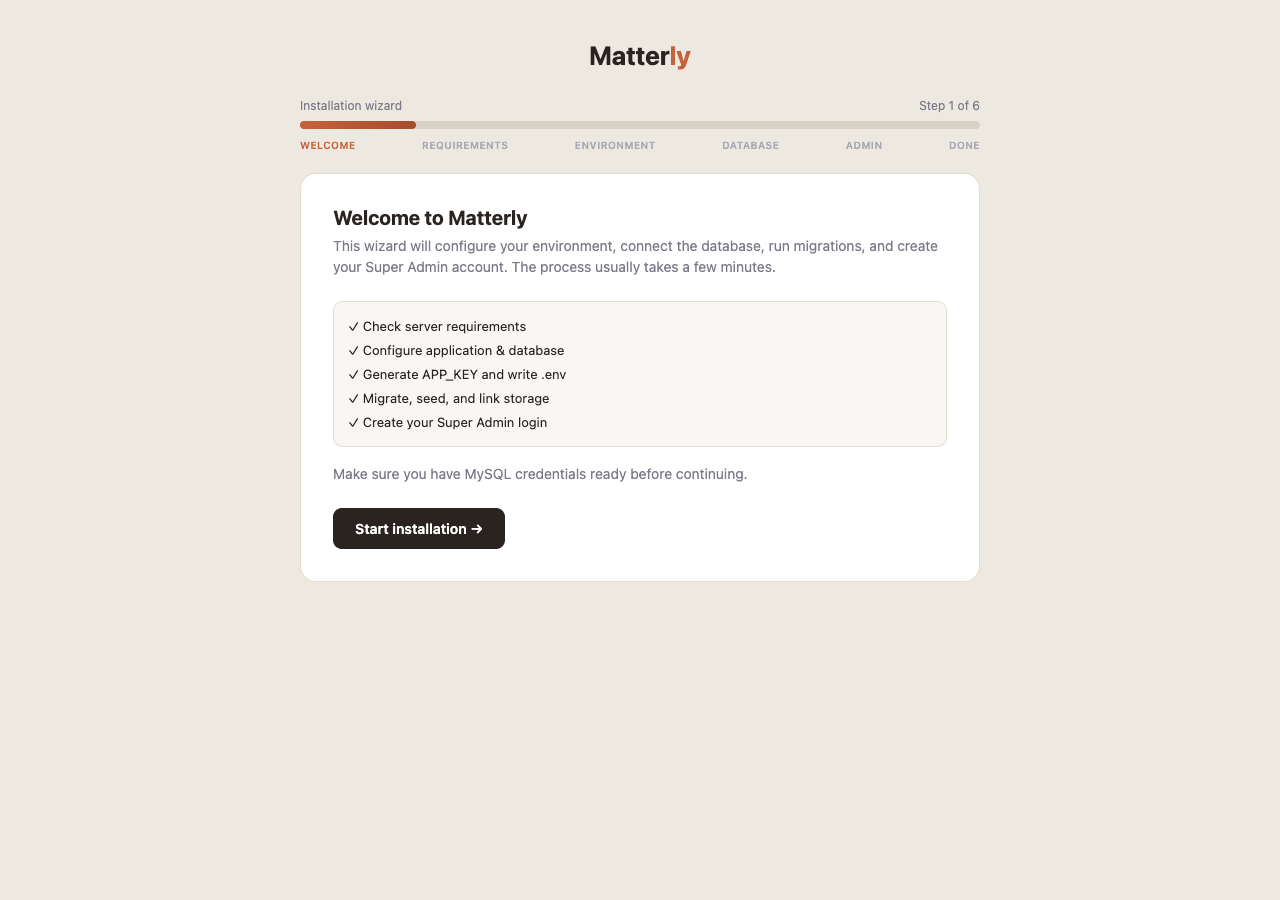
What you see: A short introduction explaining that Matterly will guide you through setup.
What to do: Click Start installation (or equivalent Continue button).
No form fields on this screen.
#Step 2: Requirements Check
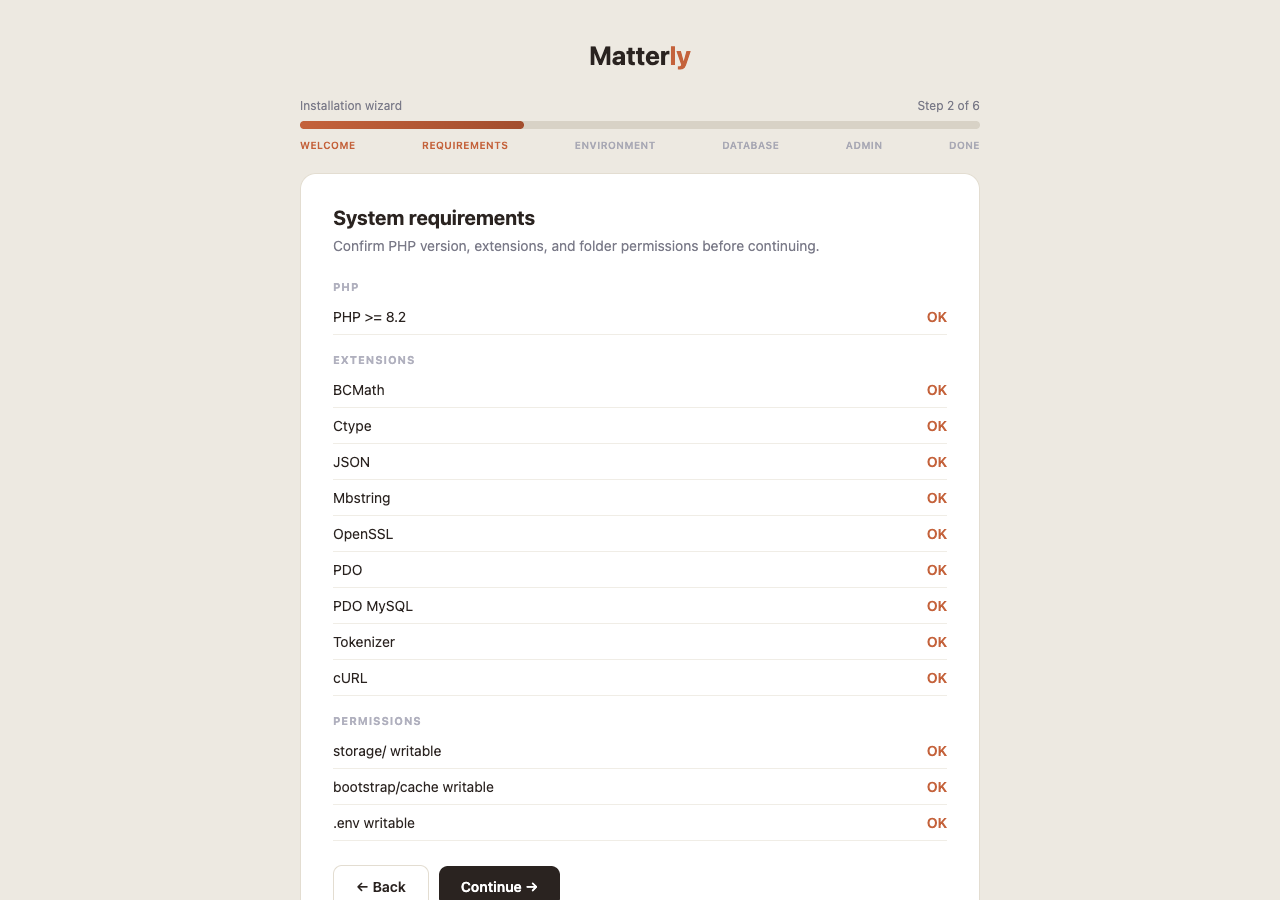
Purpose: Confirm your server can run Matterly.
What is checked:
- PHP version
- Required PHP extensions
- Folder permissions (
storage, bootstrap/cache, and related paths)
What to do:
| Result |
Action |
| All items pass (green) |
Click Continue |
| Something fails (red) |
Fix the issue on the server, then click Re-check |
#Folder Permissions
If permissions fail:
-
On Linux, ensure the web user owns or can write to:
chmod -R ug+rwx storage bootstrap/cache
-
Recheck in the installer until everything passes.
#Step 3: Environment Configuration
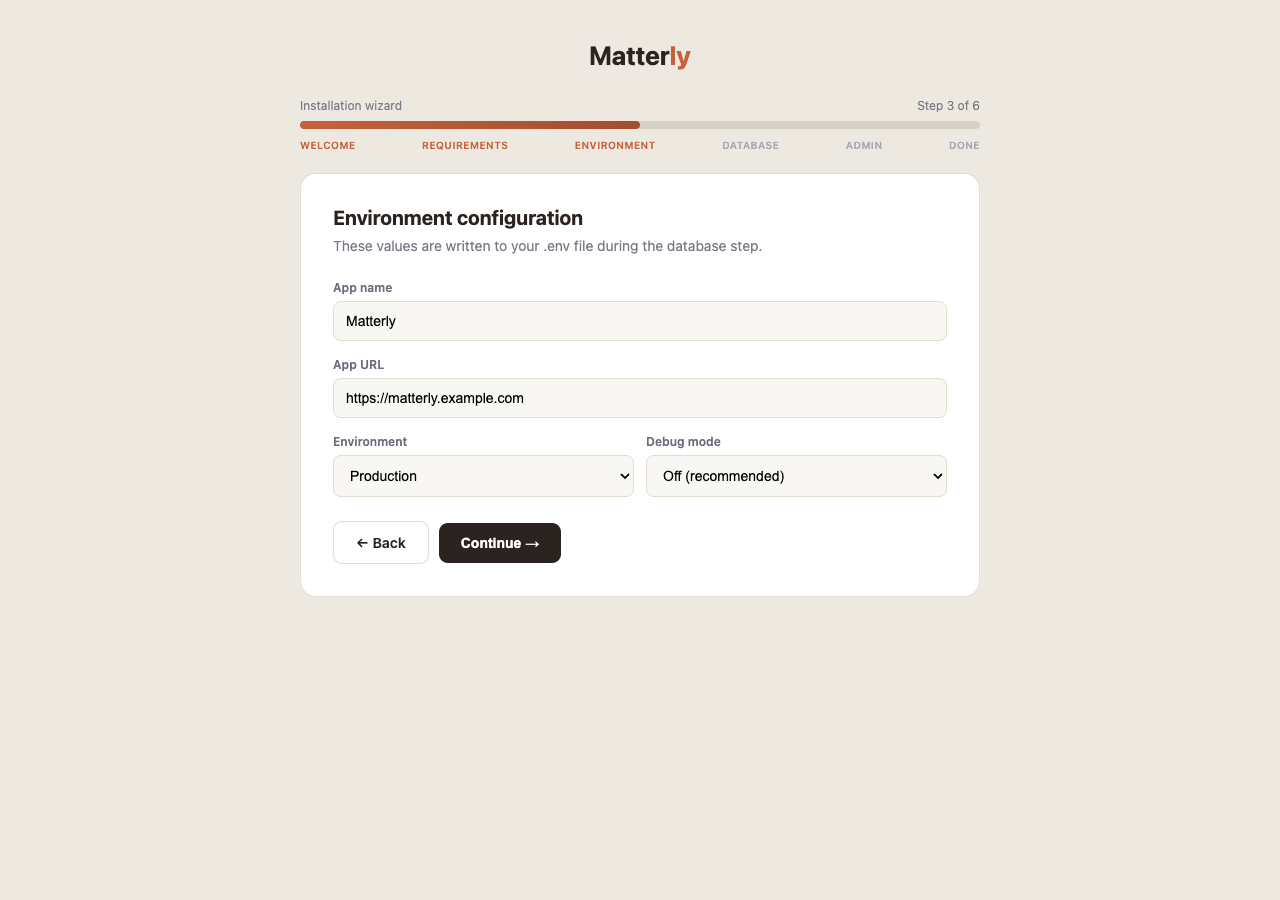
Purpose: Set basic application identity and mode.
Fields to enter:
| Field |
What to enter |
| App Name |
Display name, e.g. Matterly |
| App URL |
Full URL with no trailing slash, e.g. https://firms.example.com or http://127.0.0.1:8000 |
| Environment |
production for live; local for development; staging optional |
| Debug |
Leave off (false) on production. Only enable for debugging |
APP_KEY: Matterly generates a secure application key automatically during install. You do not paste an APP_KEY manually on this screen.
Click Continue / Save when done.
#Step 4: Database Configuration
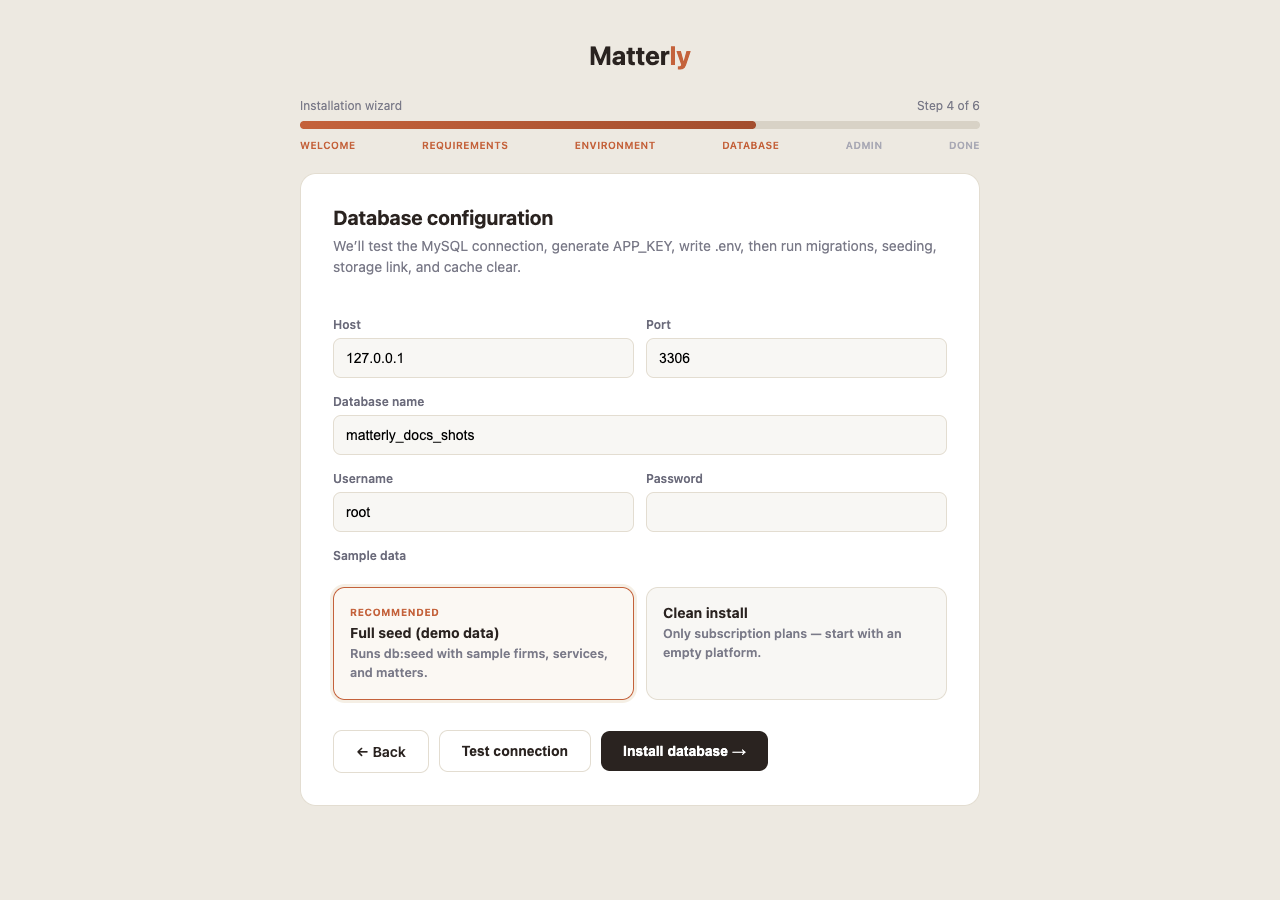
Purpose: Connect Matterly to MySQL and create tables.
Fields to enter:
| Field |
What to enter |
| Host |
Usually 127.0.0.1 or localhost |
| Port |
Usually 3306 |
| Database name |
Empty database you created, e.g. matterly |
| Username |
MySQL user with rights on that database |
| Password |
That user’s password |
| Seed demo data |
Yes: installs the sample firm (Sterling & Whitfield LLP) and demo logins. No: clean install with only your Super Admin |
Recommended buttons:
-
Click Test connection first. Fix host/user/password if it fails.
-
Click Install / Continue to:
- Write database settings to
.env
- Generate / confirm
APP_KEY
- Run migrations (create all tables)
- Run seeders (demo data if you chose that option)
- Prepare storage links and caches as needed
Wait until the step finishes. A long pause is normal on first migrate.
#Step 5: Create Super Admin
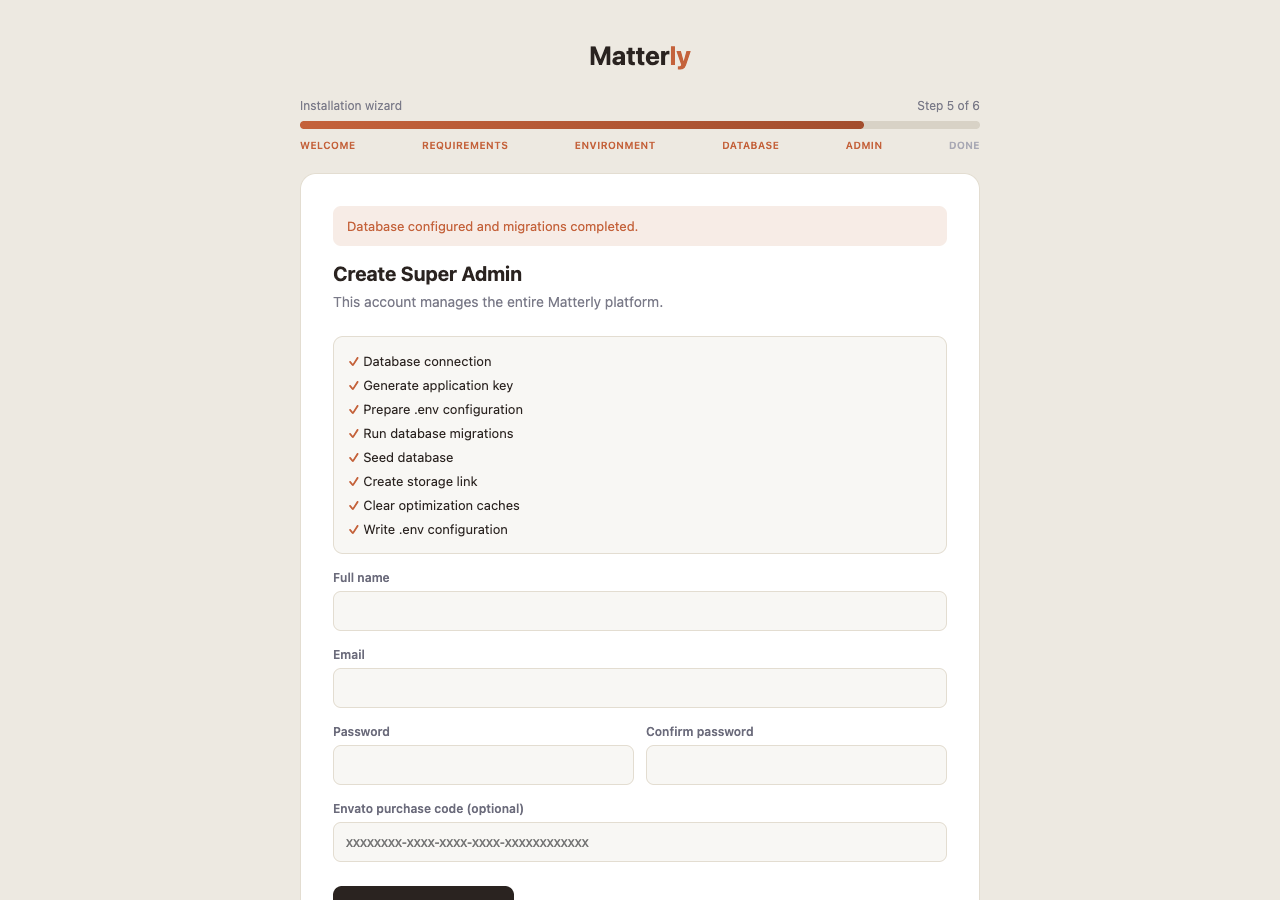
Purpose: Create the first platform administrator account.
Fields to enter:
| Field |
What to enter |
| Name |
Your full name |
| Email |
Login email (must be unique) |
| Password |
Strong password |
| Confirm password |
Same password again |
| License code (optional) |
Envato / purchase code if you use license verification |
Submit the form. Matterly creates the Super Admin user and locks the installer (storage/installed).
#Step 6: Installation Complete
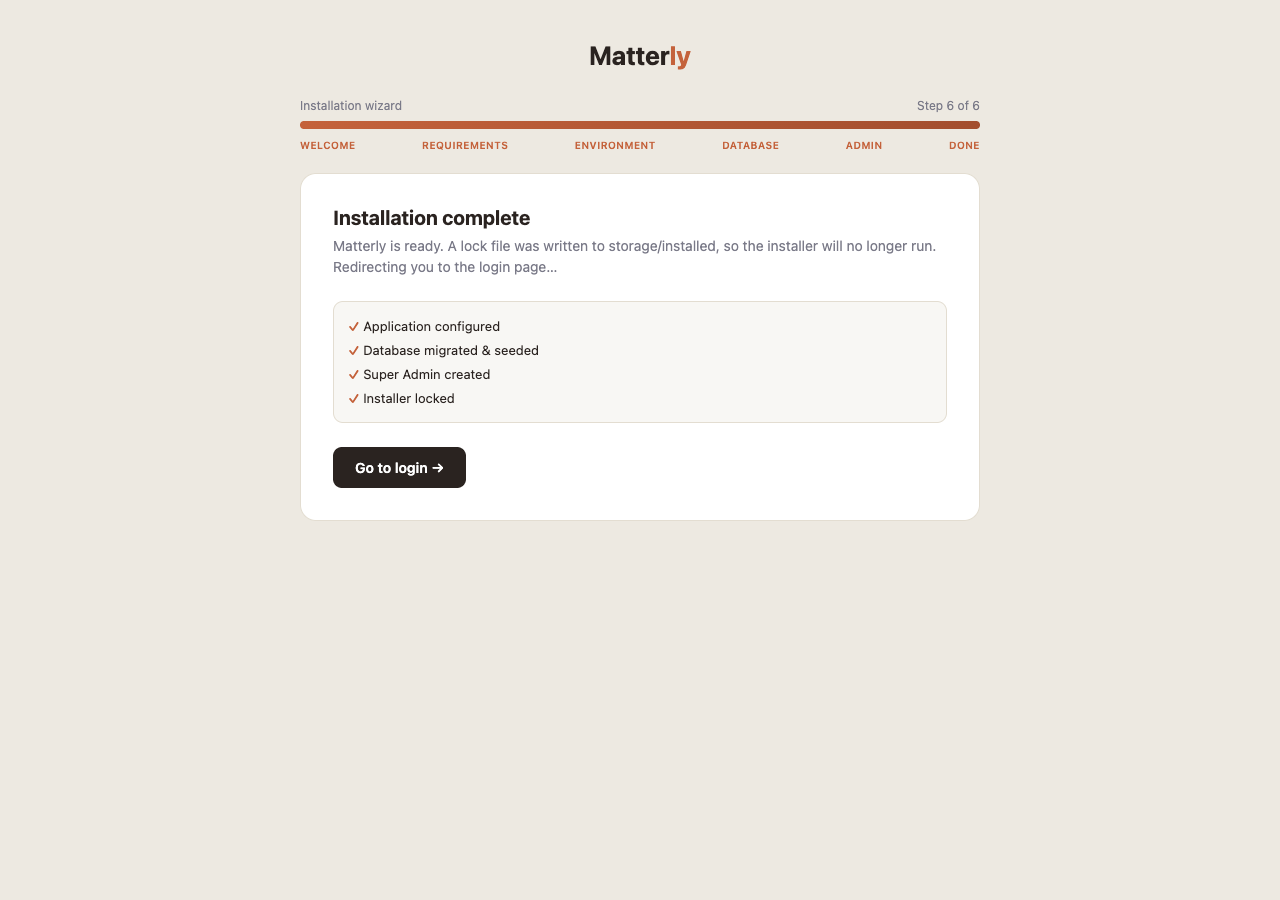
What you see: A success message.
What happens next:
- You are redirected to Login (
/login)
/install is no longer available for setup
Log in with the Super Admin email and password you just created.
#After Installation Checklist
-
Add the cron job (required). In cPanel open Cron Jobs (on a VPS, crontab -e) and add this line, set to run every minute, with your own path:
* * * * * cd /path/to/matterly && php artisan schedule:run >> /dev/null 2>&1
Matterly relies on it for client texts and emails, hearing and payment reminders, subscription renewals, sealing signed Smart Forms, webhooks, AI Staff's daily run and releasing unpaid consultation slots. Without it, none of these happen.
-
Open Super Admin → Settings and configure SMTP (so emails work).
-
Configure OpenAI if you plan to use AI features.
-
Create or review Plans, then add your first Firm.
-
Optionally open http://your-domain.com/docs for this user guide.
#Related pages